
iOS Screen Share
Screen sharing in iOS video apps uses Apple's ReplayKit broadcast extension architecture. Because iOS restricts background app access, screen capture is handled by a separate app extension that runs alongside your main app. This extension captures device screen frames and forwards them to the EnableX iOS SDK for publication into the video session.
This feature requires iOS 12 or later.
The screen sharing flow in iOS involves two processes working in tandem:
- Main App — Joins the EnableX room, stores the
RoomIDandClientIDin shared storage (NSUserDefaultswith an App Group), and manages the overall video session. - Broadcast Extension — A separate
RPSystemBroadcastPickerView-based app target that captures device screen frames usingSampleHandler, connects to EnableX as a screen-sharing client, and forwards pixel buffer frames to the SDK for publishing.
The two processes share data through an App Group, which allows the broadcast
extension to access the RoomID and ClientID set by the main app.
Step 1 — Add the Broadcast Upload Extension Target
In Xcode, add a Broadcast Upload Extension target to your project:
- Go to File → New → Target
- Select Broadcast Upload Extension
- Assign a unique Bundle ID for the extension, following the pattern:
com.companyName.AppName.Broadcast.Extension
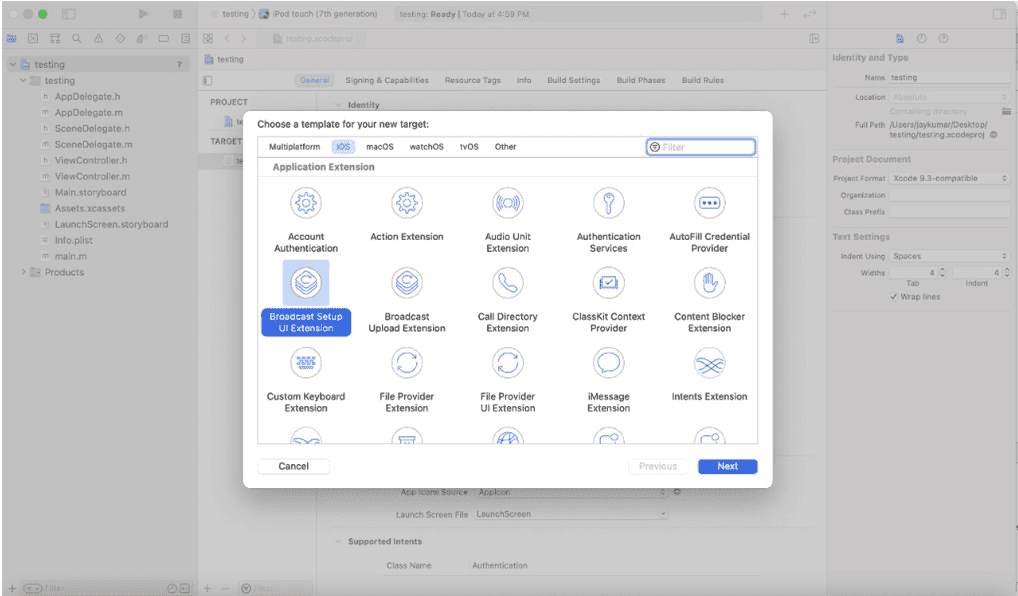
After adding the broadcast extension, verify that the correct Bundle ID is set for both the extension target and the main app target. A mismatch will prevent the extension from launching.
Step 2 — Open the Broadcast Extension via RPSystemBroadcastPickerView
Use RPSystemBroadcastPickerView to display the system broadcast picker and launch
your extension. The code below initialises the picker, binds it to your extension's bundle
identifier, and triggers the picker programmatically:
RPSystemBroadcastPickerView *pickerView =
    [[RPSystemBroadcastPickerView alloc] initWithFrame:CGRectMake(0, 0, 50, 50)];
pickerView.translatesAutoresizingMaskIntoConstraints = NO;
pickerView.autoresizingMask =
    (UIViewAutoresizingFlexibleTopMargin | UIViewAutoresizingFlexibleRightMargin);

// Bind to the broadcast extension bundle
NSURL *url = [[NSBundle mainBundle] URLForResource:@"BroadCastExtension"
                                     withExtension:@"appex"
                                      subdirectory:@"PlugIns"];
if (url != nil) {
    NSBundle *bundle = [NSBundle bundleWithURL:url];
    if (bundle != nil) {
        pickerView.preferredExtension = bundle.bundleIdentifier;
    }
}

pickerView.hidden = NO;
pickerView.showsMicrophoneButton = NO;

// Trigger the picker programmatically
SEL buttonPress = NSSelectorFromString(@"buttonPressed:");
if ([pickerView respondsToSelector:buttonPress]) {
    [pickerView performSelector:buttonPress withObject:nil];
}

[self.view addSubview:pickerView];
[self.view bringSubviewToFront:pickerView];
pickerView.center = self.view.center;
The SampleHandler class inside the broadcast extension receives each captured frame through the following delegate method:
| Class | Delegate Method |
|---|---|
SampleHandler |
-(void)processSampleBuffer:(CMSampleBufferRef)sampleBuffer withType:(RPSampleBufferType)sampleBufferType |
Additional lifecycle callbacks available in SampleHandler:
| Method | Description |
|---|---|
-(void)broadcastFinished |
Called when the broadcast has fully stopped. |
-(void)broadcastPaused |
Called when the broadcast is paused. |
-(void)broadcastResumed |
Called when the broadcast resumes after a pause. |
Step 3 — Configure App Groups
App Groups allow the main app and the broadcast extension to share data through a common
NSUserDefaults suite. You must enable App Groups on both targets.
For the main app target:
- Select your app target in Xcode under Targets
- Go to Signing & Capabilities → + Capability → App Groups
- Add or create an App Group identifier (for example,
group.com.enx.Videocall)
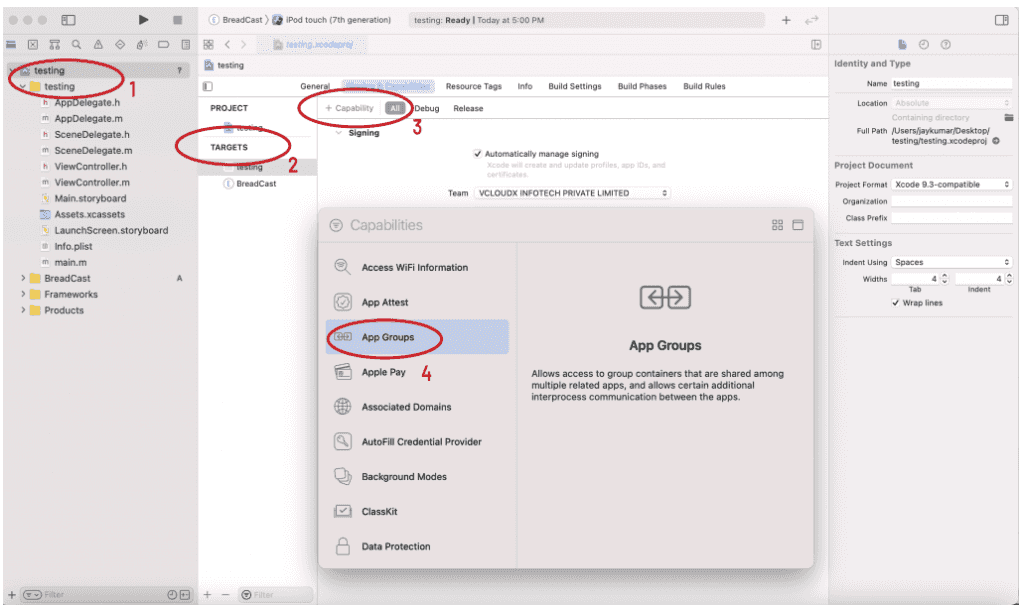
For the broadcast extension target:
- Select the broadcast extension target in Xcode
- Go to Signing & Capabilities → + Capability → App Groups
- Add the same App Group identifier used above
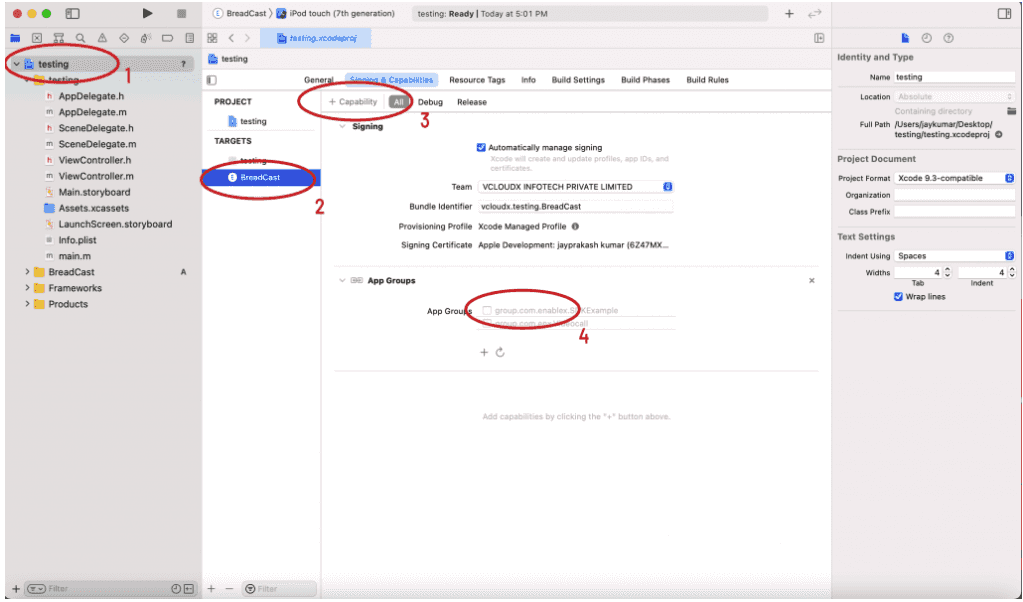
Step 4 — Store Room ID and Client ID
After successfully joining the EnableX room in the main app, store the RoomID
and ClientID in the shared App Group NSUserDefaults so the broadcast
extension can access them:
// Store the RoomID
NSUserDefaults *userDefaults =
    [[NSUserDefaults alloc] initWithSuiteName:@"group.com.enx.Videocall"];
[userDefaults setObject:yourRoomId forKey:@"RoomId"];
[userDefaults synchronize];

// Store the ClientID after successfully joining the room
NSUserDefaults *userDefault =
    [[NSUserDefaults alloc] initWithSuiteName:@"group.com.enx.Videocall"];
[userDefault setObject:_remoteRoom.clientId forKey:@"ClientID"];
[userDefault synchronize];
Step 5 — Pass the App Group Key to EnableX SDK
Inform the EnableX SDK about the App Group name and the key used to store the
ClientID:
[[EnxUtilityManager shareInstance]
    setAppGroupsName:@"group.com.enx.Videocall"
         withUserKey:@"ClientID"];
Step 6 — Start the Broadcast
With the RoomID and ClientID stored and the App Group key registered,
trigger the broadcast via RPSystemBroadcastPickerView. The
SampleHandler class inside the broadcast extension will receive control and begin
capturing frames.
When the broadcast starts, the SampleHandler receives the
broadcastStartedWithSetupInfo: callback. Inside this callback, connect to the
EnableX room using the shared RoomID.
Retrieve Room ID in the Extension
NSUserDefaults *userDefault =
    [[NSUserDefaults alloc] initWithSuiteName:@"group.com.enx.Videocall"];
NSString *roomId = [userDefault objectForKey:@"RoomId"];
Register App Group in the Extension
[[EnxUtilityManager shareInstance]
    setAppGroupsName:@"group.com.enx.Videocall"
         withUserKey:@"ClientID"];
Connect with Screen Share Token
Create a new EnxRoom instance and connect to the room using a screen-share token.
This token is generated server-side using the same RoomID:
EnxRoom *remoteRoom = [[EnxRoom alloc] init];
[remoteRoom connectWithScreenshare:responseDict[@"token"]
               withScreenDelegate:self];
The SDK fires the following delegate callbacks on the result of the connection:
-(void)broadCastConnected— The broadcast extension has successfully connected to the EnableX room.-(void)failedToConnectWithBroadCast:(NSArray *)reason— The connection failed. Thereasonarray contains error details.
Call startScreenShare on the EnxRoom instance inside the broadcast
extension after the room connection is established. This creates a screen-sharing stream at
6 fps and publishes it to the EnableX media channel.
| Method | Target | Description |
|---|---|---|
[enxRoom startScreenShare] |
Broadcast extension | Initiates the screen-sharing stream publication. |
-(void)didStartBroadCast:(NSArray *)data |
Broadcast extension delegate | Called after the screen-share stream is successfully published. |
-(void)room:(EnxRoom *)room didStartScreenShareACK:(NSArray *)data |
Main app delegate | Acknowledgment callback received in the main application when screen sharing starts. |
Once the room is connected and screen sharing has started, forward each captured frame from the
processSampleBuffer:withType: callback to the EnableX SDK:
[enxRoom sendVideoBuffer:pixelBuffer
          withTimeStamp:timeStampNs
frameOrientation:@"portrait"];| Parameter | Type | Description |
|---|---|---|
sampleBuffer |
CVPixelBufferRef |
The pixel buffer frame of the screen. If you receive a CMSampleBufferRef, convert it first: CVPixelBufferRef pixelBuffer = CMSampleBufferGetImageBuffer(bufferImage); |
timeStampNs |
int64_t |
Frame timestamp in nanoseconds: int64_t timeStampNs = CMTimeGetSeconds(CMSampleBufferGetPresentationTimeStamp(bufferImage)) * 1000000000; |
orientation |
string | Frame orientation. Enum: portrait, faceUp, faceDown, landscapeLeft, landscapeRight, portraitUpsideDown. Defaults to portrait. |
Detecting Device Orientation in the Extension
Because the broadcast extension does not have access to UIKit, use the CoreMotion framework to detect and track device orientation while the broadcast is running:
import CoreMotion

let motionManager = CMMotionManager()
var orientation: String = "portrait"

// In broadcastStarted(withSetupInfo:)
override func broadcastStarted(withSetupInfo setupInfo: [String: NSObject]?) {
  startDeviceMotionUpdates()
}

func startDeviceMotionUpdates() {
  guard motionManager.isDeviceMotionAvailable else { return }
  motionManager.deviceMotionUpdateInterval = 0.2   // update every 200ms

  motionManager.startDeviceMotionUpdates(to: .main) { [weak self] motion, error in
    guard let motion = motion, error == nil else { return }
    self?.orientation = self?.detectOrientation(from: motion.gravity) ?? "portrait"
  }
}

func detectOrientation(from gravity: CMAcceleration) -> String {
  if      gravity.z < -0.8  { return "faceUp" }
  else if gravity.z >  0.8  { return "faceDown" }
  else if gravity.x >  0.8  { return "landscapeLeft" }
  else if gravity.x < -0.8  { return "landscapeRight" }
  else if gravity.y < -0.8  { return "portrait" }
  else if gravity.y >  0.8  { return "portraitUpsideDown" }
  return "portrait"
}

func stopDeviceMotionUpdates() {
  if motionManager.isDeviceMotionActive {
    motionManager.stopDeviceMotionUpdates()
  }
}

override func broadcastFinished() {
  stopDeviceMotionUpdates()
  screenShare.stopScreenShare()
}
The broadcast extension has a maximum runtime memory limit of 50 MB. If the
captured frame buffer exceeds this limit, the extension will be terminated by iOS. To stay within
this limit, compress each CMSampleBufferRef received in
processSampleBuffer:withType: using vImage crop or an equivalent crop methodology
before forwarding it to the SDK.
- (void)processSampleBuffer:(CMSampleBufferRef)sampleBuffer
                   withType:(RPSampleBufferType)sampleBufferType {
  // Compress/crop the buffer here before forwarding to EnableX
  CVPixelBufferRef pixelBuffer = CMSampleBufferGetImageBuffer(sampleBuffer);
  int64_t timeStampNs =
      CMTimeGetSeconds(CMSampleBufferGetPresentationTimeStamp(sampleBuffer)) * 1000000000;

  [enxRoom sendVideoBuffer:pixelBuffer
            withTimeStamp:timeStampNs
         frameOrientation:@"portrait"];
}
Call stopScreenShare to end the screen-sharing stream and unpublish it from the room.
| Method | Target | Description |
|---|---|---|
[enxRoom stopScreenShare] |
Broadcast extension | Stops the screen-sharing stream. |
-(void)didStoppedBroadCast:(NSArray *)data |
Broadcast extension delegate | Called after the screen-share stream is unpublished. |
-(void)room:(EnxRoom *)room didStopScreenShareACK:(NSArray *)data |
Main app delegate | Acknowledgment callback received in the main application when screen sharing stops. |
After stopping screen sharing, disconnect the room connection held by the broadcast extension. This is separate from the main app's room connection.
| Method / Event | Target | Description |
|---|---|---|
[enxRoom disconnect] |
Broadcast extension | Disconnects the broadcast extension's room connection. |
-(void)broadCastDisconnected |
Broadcast extension delegate | Called after the broadcast room is fully disconnected. |
-(void)disconnectedByOwner |
Broadcast extension delegate | Called by the SDK when the main app participant disconnects while screen sharing is active. The broadcast extension must stop sharing upon receiving this. |
[self finishBroadcastWithError:nil] |
Broadcast extension | Must be called to stop the ReplayKit broadcast after receiving the disconnectedByOwner event. |
The main app (the parent user) can force-stop an ongoing screen share using
exitScreenShare. This instructs the child client (the broadcast extension) to
terminate the broadcast.
// Called in the main app to force-stop an active screen share
[enxRoom exitScreenShare];| Delegate Method | Received By | Description |
|---|---|---|
-(void)room:(EnxRoom *)room didExitScreenShareACK:(NSArray *)data |
Main app | Acknowledgment that exitScreenShare was processed. |
-(void)didRequestedExitRoom:(NSArray *)data |
Broadcast extension (child client) | Notifies the broadcast extension to stop the broadcast and disconnect from the room. |
| Code | Description |
|---|---|
5137 |
Screen sharing is not currently running in the conference. |