
iOS Chatbot UI Kit
dialogs_ChatbotAV_iOS is a pre-built, fully managed chat and video-calling UI for
iOS — unlike the Chatbot SDK, there is no UI to build
yourself. Attach one view, and you get a complete chat screen, click-to-call flow, and
Picture-in-Picture video calling surface out of the box. It's built on the same WebView-driven
chat engine as the Chatbot SDK, plus a native audio/video calling layer powered by
Enx_UIKit_iOS and EnxRTCiOS.
First release of the iOS Chatbot UI Kit. See Release Notes for what's included.
Download iOS Chatbot UI Kit v1.0.0Requirements
| Requirement | Value |
|---|---|
| iOS Deployment Target | 15.0+ |
| Swift Tools Version | 5.9 (host project uses Swift 5.0 language mode) |
| Xcode | 15 or newer (tested with Xcode 26.5) |
| Target device | Physical iOS device only for any calling feature |
| Architecture | arm64 only — no simulator (x86_64 / arm64-simulator) slice exists |
Why device-only? The native calling engine (EnxRTCiOS and its embedded EnablexWebRTC media engine) is distributed as an arm64-only binary xcframework with no simulator variant. Any attempt to build or run the calling surface in Simulator will fail to link. Chat-only usage (text/image/file, no calling) has no such restriction, but since both features share one binary framework, the whole UI Kit is effectively device-only.
Depends on: Enx_UIKit_iOS 2.2.4 → EnxRTCiOS 3.1.6
Installation
Option A — Swift Package Manager (binary distribution)
Build the framework via build_xcframework.sh (see Building & Distributing the Framework), upload the resulting .zip to a release, then point Enx_iOS_lib_template/Package.swift at it:
.binaryTarget(
    name: "dialogs_ChatbotAV_iOS",
    url: "https://github.com/<org>/<repo>/releases/download/1.0.0/dialogs_ChatbotAV_iOS.xcframework.zip",
    checksum: "<value from Enx_iOS_lib/checksum.txt>"
)
Option B — CocoaPods
Use Enx_iOS_lib_template/dialogs_ChatbotAV_iOS.podspec, which vendors the same .xcframework via s.vendored_frameworks and an HTTP source pointing at the release zip.
Required Permissions MANDATORY
This framework does not ship its own Info.plist usage-description strings — iOS requires usage-description keys to live in the consuming app's Info.plist, not in an embedded framework. If you omit any of the keys below, the app will crash at runtime the moment the corresponding feature is used (camera capture, mic access, or photo picker), not at build time.
| Info.plist Key | Triggered By | Required For |
|---|---|---|
NSCameraUsageDescription | EnxBotContainerView.openCamera(), video calling | Camera capture attachment; camera feed during a video call |
NSMicrophoneUsageDescription | Audio/video calling (EnxRTCiOS) | Microphone capture during any audio or video call |
NSPhotoLibraryUsageDescription | EnxBotContainerView.openImageGalary()/videoRecording() (PHPicker) | Selecting an existing photo/video attachment from the library |
Reference values used in the sample host app (VCX_Chat_Bot target build settings):
INFOPLIST_KEY_NSCameraUsageDescription = "App User Camera for image capture";
INFOPLIST_KEY_NSMicrophoneUsageDescription = "App User micro Phone";
INFOPLIST_KEY_NSPhotoLibraryUsageDescription = "Select image from galary";
Privacy Manifest: The embedded EnablexWebRTC.framework ships its own PrivacyInfo.xcprivacy declaring NSPrivacyAccessedAPICategorySystemBootTime and NSPrivacyAccessedAPICategoryFileTimestamp (no tracking, no collected data types). When you archive your app for App Store Connect, Xcode aggregates this automatically — you do not need to duplicate these entries in your app's own privacy manifest, but you should be aware they exist if Apple's privacy report tooling flags them during review.
Network: The SDK talks to two EnableX-owned HTTPS endpoints — https://voiceassist.enablex.io (chat WebView engine) and https://meeting.enablex.io (token endpoint, currently unused by the default flow). Both are plain HTTPS with valid certificates, so no NSAppTransportSecurity exceptions are required. Ensure your app does not sandbox/deny arbitrary outbound HTTPS if you have a restrictive ATS or network security policy.
Integration Steps
- Add the framework via SPM or CocoaPods (see Installation above).
- Add the three usage-description keys from Required Permissions to your app's Info.plist.
- Build an
EnxBotConfigurationwith your bot id/host, callEnxChatClient.connect(configuration:eventListner:), and attach the returned view — see the Usage Example. - If you set
callingView: true, also callEnxChatClient.getCallingView()and place the returned control in your own chrome (toolbar/nav bar). - Test all calling and attachment flows on a physical device — see Requirements.
EnxChatClient final class
The single entry point into the UI Kit. All members are static — the framework manages one active bot session per process.
static func connect(configuration: EnxBotConfiguration, eventListner delegate: EnxChatClientDelegate) -> EnxBotContainerView
Starts a bot session and returns the container view to attach into your view hierarchy. Internally creates the WebView-backed chat engine, wires it to the given EnxBotConfiguration, and stores delegate for the didBotConnected callback.
| Parameter | Type | Description |
|---|---|---|
configuration | EnxBotConfiguration | Bot connection settings (bot id, host, path, calling-view mode). |
eventListner | EnxChatClientDelegate | Receives the didBotConnected callback once the bot handshake completes. |
static func getCallingView() -> EnxCallingView
Returns a standalone audio/video call-trigger control (a UIStackView with an audio and a video button). Only meaningful after connect(configuration:eventListner:) has been called with configuration.callingView == true — the returned view reflects that configuration's callingView flag.
EnxChatClientDelegate protocol
func didBotConnected(_ botInfo: [String: Any])
Called once when the remote bot session identifies itself. botInfo is the raw botInfo payload forwarded from the chatbot web application (bot name, metadata, etc.) — shape is defined by the bot backend, not this SDK.
EnxBotConfiguration open class
Immutable configuration object passed to EnxChatClient.connect.
| Member | Type | Description |
|---|---|---|
botId | String | Bot identifier issued by the EnableX bot platform. |
host | String | Bot host / environment identifier passed through to the chat web engine's initializeEnxChat call. |
path | String | Optional path segment. Defaults to "". |
callingView | Bool | When true, the container hides its own inline call buttons so the host app can present EnxCallingView separately. Defaults to false. |
public init(botId: String, host: String, path: String = "", callingView: Bool = false)EnxBotContainerView final class : UIView
The root view returned by connect(configuration:eventListner:). Owns the chat list, input bar, click-to-call UI, WebView engine, and (on demand) the floating video call surface.
func attach(to parent: UIView)
Convenience helper that pins the container to parent's safe-area top and its leading/trailing/bottom edges via Auto Layout. Use your own constraints instead if you need custom placement.
func resetBot()
Clears the remote conversation state (invokes the web engine's resetConversation / clearConversation / reset, whichever the loaded bot script exposes).
EnxBotContainerView also conforms to PHPickerViewControllerDelegate, UIImagePickerControllerDelegate, and UIDocumentPickerDelegate so it can directly receive attachment picker callbacks — these conformances are implementation detail exposed only because Objective-C delegate protocols require public visibility; they are not meant to be invoked directly by host apps.
EnxCallingView final class : UIStackView
A two-button (audio / video) call trigger control, obtained via EnxChatClient.getCallingView(). Place it in your own toolbar/header when using callingView: true mode. Tapping a button routes the corresponding CallType back into the active EnxBotContainerView's call-handling pipeline.
EnxChatSetting final class : NSObject
EnxChatSetting.shared is a public singleton, but its sessionId, conversationId, and botInfo members are internal — there is currently no actionable public surface on this type for host apps. It is documented here only for completeness; do not depend on it from outside the framework.
Usage Example
import UIKit
import dialogs_ChatbotAV_iOS

final class ChatViewController: UIViewController, EnxChatClientDelegate {

    override func viewDidLoad() {
        super.viewDidLoad()

        let configuration = EnxBotConfiguration(
            botId: "<your-bot-id>",
            host: "<your-bot-host>",
            callingView: false
        )

        let botView = EnxChatClient.connect(
            configuration: configuration,
            eventListner: self
        )
        botView.attach(to: view)
    }

    func didBotConnected(_ botInfo: [String: Any]) {
        print("Bot connected:", botInfo)
    }
}What Your Users See
Because the UI Kit renders a complete, ready-made chat and calling experience, it helps to know exactly what your end users will interact with. The walkthrough below is adapted from the UI Kit's own end-user guide — useful for support teams, QA, and anyone writing in-app help content.
Screens in this guide are illustrative mockups, not screenshots — the exact colors, wording, and branding in a shipping app may differ, but the interactions work the same way.
1. Starting a Conversation
The chat screen opens ready to talk — there's nothing to set up. A greeting from the assistant appears automatically, and the user can start typing right away in the message box at the bottom of the screen.
- If the assistant is still starting up, a typing indicator (three dots) briefly appears before the first message arrives.
- If the chat doesn't load at all, it's usually a connectivity issue — the assistant needs a live connection to respond.
2. Sending Messages
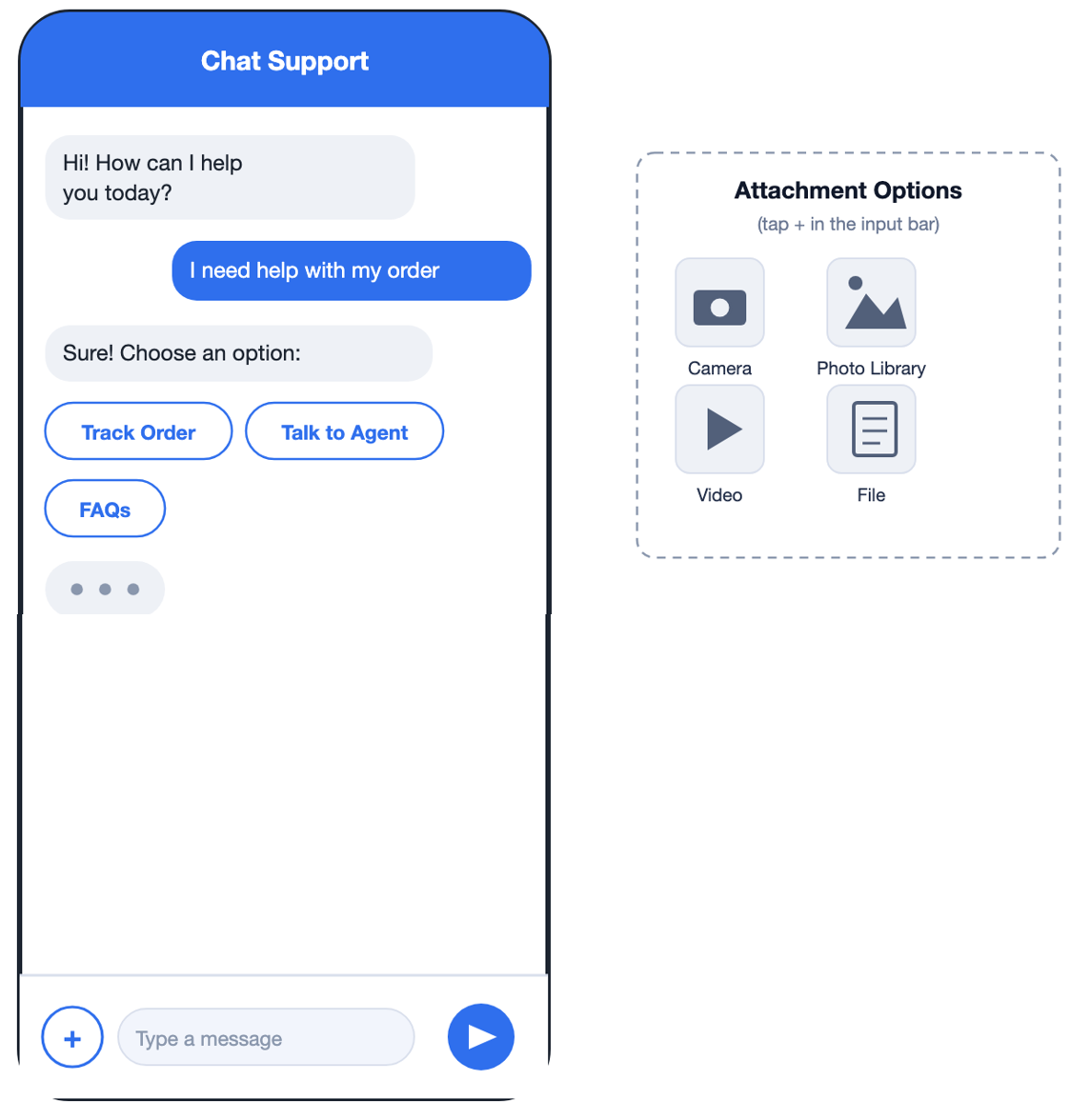
The user types in the message box and taps the send button (the arrow icon) to reply to the assistant. User messages appear on the right in blue; the assistant's replies appear on the left. The assistant can also send:
- Formatted text — bold and other simple formatting render automatically.
- Images, video clips, and files it wants to share.
- A date picker, for questions like scheduling an appointment.
- Quick-reply chips (see below) and action buttons that open a link when tapped.
3. Quick Replies & Suggestions
When the assistant offers a set of rounded buttons under its message, the user taps one instead of typing — it sends that reply automatically. Some questions allow picking only one option; others let the user pick several before continuing.
4. Sharing Photos, Videos & Files
Tapping the + button to the left of the message box opens the attachment panel:
- Camera — take a new photo to send immediately.
- Photo Library — pick an existing photo from the device.
- Video — pick a video from the library.
- File — share a document (PDF, text, or other file types).
The first time each option is used, the device asks for permission to access the camera, photo library, or microphone — see About the Permission Prompts below.
5. Starting a Call
For some conversations, the assistant offers to connect the user to a live agent by phone or video instead of continuing over text. When that happens, the message box is replaced with a call screen:
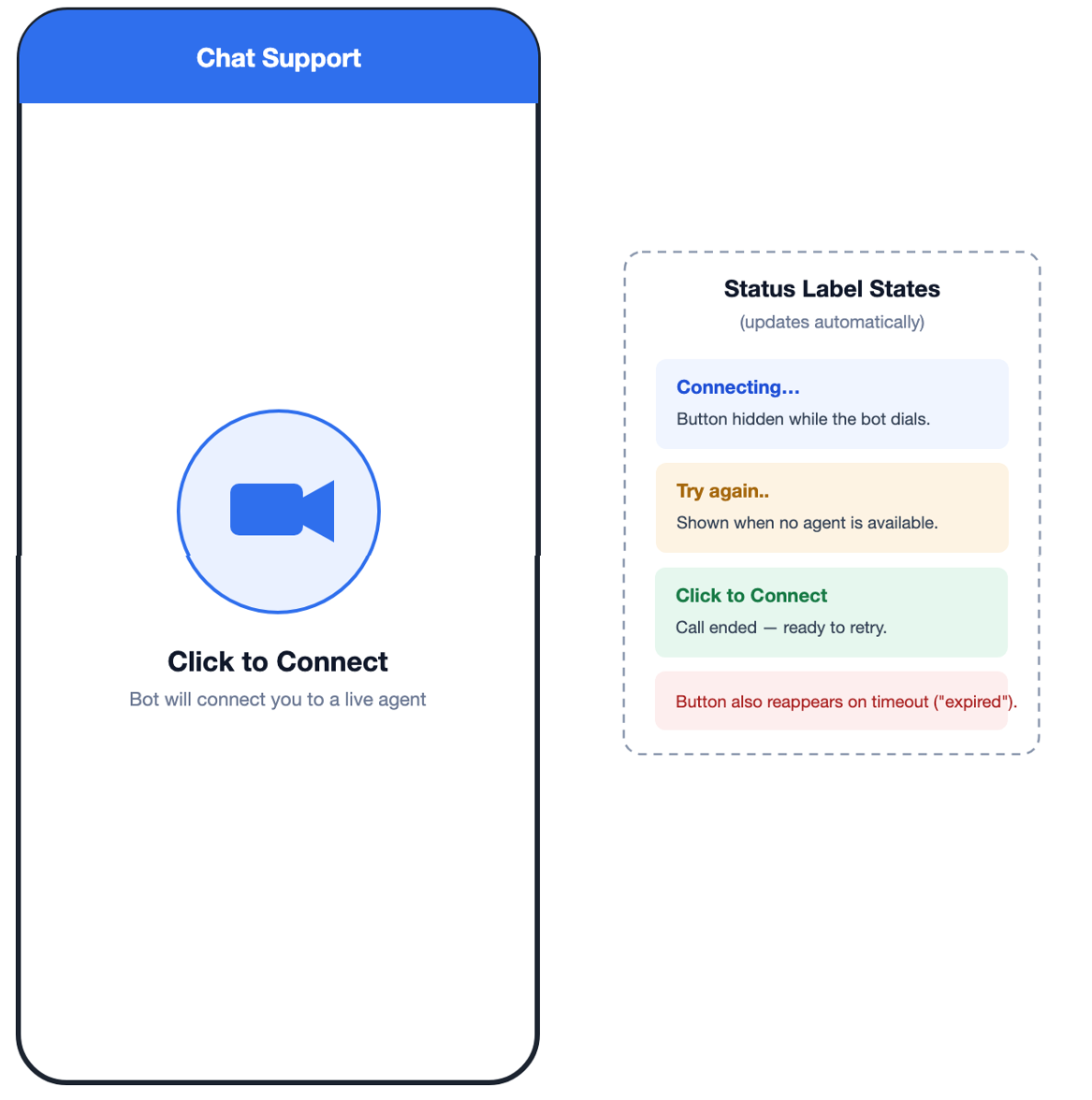
Tapping the video icon starts connecting. The label under the button keeps the user informed:
| What the user sees | What it means |
|---|---|
| Connecting… | The button disappears briefly while the assistant dials out to an agent. |
| Try again.. | No agent was available — tap the button again after a moment. |
| Click to Connect | Ready to call, or the previous call just ended. |
6. During the Call
Once connected, the call opens full-screen with the agent's video (or just audio, depending on what was requested). The user can keep using the rest of the app while a call is active by shrinking it into a small floating window:
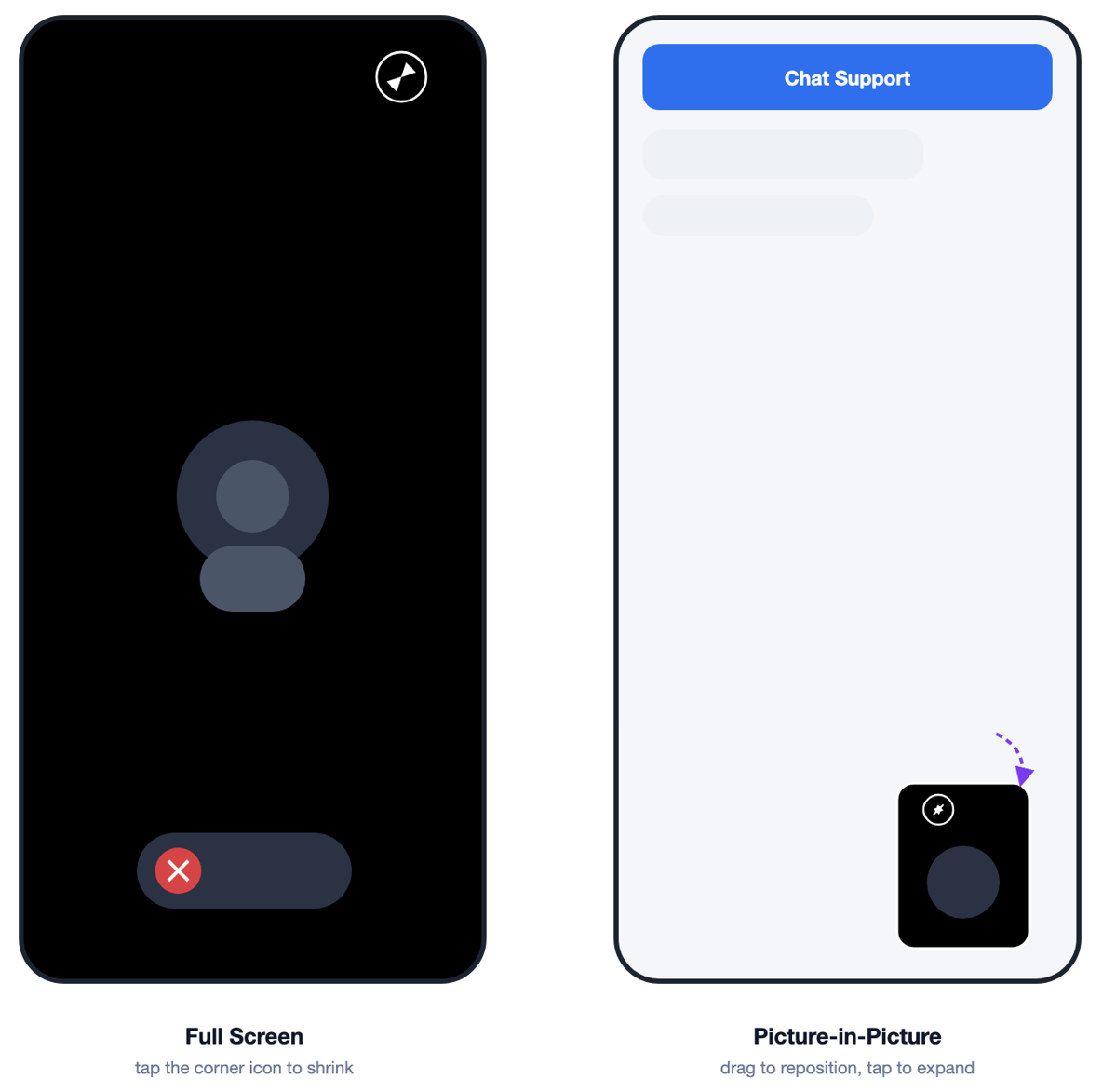
- Shrink the call: tap the small icon in the top-right corner of the call screen to collapse it into a floating window.
- Move the floating window: drag it anywhere on the screen — it stays out of the way.
- Return to full screen: tap the floating window to expand it again.
- End the call: tap the red button to hang up.
7. About the Permission Prompts
The app asks for a few permissions the first time certain features are used. These are standard iOS prompts, and the user can always change the answer later in Settings for the app.
| Permission | Why it's requested |
|---|---|
| Camera | So the user can take a photo to send in chat, or so the agent can see them during a video call. |
| Microphone | So the agent can hear the user during an audio or video call. |
| Photo Library | So the user can pick an existing photo or video to share in chat. |
If a permission is declined and the user later wants that feature, they can open iOS Settings → [app name] → and turn the relevant permission back on.
8. End-User Troubleshooting
| Problem | Try this |
|---|---|
| Chat won't load / stuck on typing indicator | Check the internet connection and restart the app. |
| Tapping the camera/photo/file button does nothing | Check that the app has the relevant permission (see above). |
| Call never connects | Make sure microphone (and camera, for video) permission is granted, and the connection is stable. |
| Want to start over | Some apps offer a reset/restart option for the conversation in their own menu — check the app's settings if there's no reset option on the chat screen itself. |
Feature Support (v1.0.0)
| Feature | Supported | Notes |
|---|---|---|
| Fully managed chat + calling UI | Yes | Attach one view (EnxBotContainerView) and get the complete experience — no UI to build. |
| Rich message types | Yes | Text, markdown, images, video, file attachments, calendar date-picker, single/multi-choice suggestions, action buttons, system/handover status messages. |
| Native attachment pipeline | Yes | Photo Library (PHPicker), Camera (UIImagePickerController), file/document sharing (UIDocumentPickerViewController), with client-side image compression before upload. |
| Click-to-call flow | Yes | When the bot signals a clickToCall session, the input bar is swapped for a dedicated calling UI (EnxClickToCallingView) with handover-status–aware button states. |
| Audio/video calling | Yes | EnxVideoContainerView supports both native mode (EnxRTCiOS, room token) and WebView mode (embedded iframe URL), depending on what the bot supplies. |
| Picture-in-picture floating call view | Yes | Drag-to-reposition and tap-to-expand/collapse gestures. |
| Conversation reset | Yes | EnxBotContainerView.resetBot(). |
| Objective-C interop | Yes | Public types are exposed for ObjC consumption where applicable. |
| UI customization API | No | Not available in v1.0 — the UI Kit renders its own complete UI. |
| Multi-bot support | No | EnxChatClient holds static state — only one bot session per process. |
| Simulator support (calling) | No | Native calling engine ships arm64 device-only binaries — no simulator slice. |
| Offline/retry handling for chat load | No | A network failure during initial WebView load surfaces only via navigation-delegate error logging. |
Building & Distributing the Framework
The repository ships a single consolidated script, build_xcframework.sh, that works two ways:
- Manual:
bash build_xcframework.shfrom the repo root — archives thedialogs_ChatbotAV_iOSscheme for a real device and packages the result. - Automatic: already wired into the scheme's Archive Post-action (
VCX_Chat_Bot.xcodeproj/xcshareddata/xcschemes/dialogs_ChatbotAV_iOS.xcscheme) — running Product › Archive on that scheme in Xcode packages the archive automatically, with no extra setup.
Both paths write to Enx_iOS_lib/: dialogs_ChatbotAV_iOS.xcframework, the matching .zip, a standalone dSYMs/ copy for crash symbolication, and checksum.txt for SPM's binary target checksum.
Developer Troubleshooting
| Symptom | Cause / Fix |
|---|---|
| Link error building for Simulator | Expected — build/run on a real device (see Requirements). |
| App crashes immediately on camera/mic/photo access | Missing usage-description key — see Required Permissions. |
| Chat view never loads | Device has no network reachability to voiceassist.enablex.io, or botId/host in EnxBotConfiguration is wrong. |
| Video call view never connects | Room token from the bot payload is missing/expired, or mic/camera permission was denied. |